
Dropship supplier store setup
Synkro provides an A-Z solution for connecting with other Shopify stores as dropship sellers, allowing them to import and sell your store's products, then route those orders back to your dropship supplier store automatically for fulfillment.
Last updated December 20, 2025
Overview
Synkro provides an A-Z solution for inserting your products into a Shopify-powered dropship seller store and keeping your products and inventory in sync in real time. When an order is placed for your items in a dropship seller store, Synkro will automatically dispatch an order to your supplier store for completely automated fulfillment.
Step 1: Install Synkro in your dropship supplier store
To begin the installation process, install Synkro in your dropship supplier Shopify store.
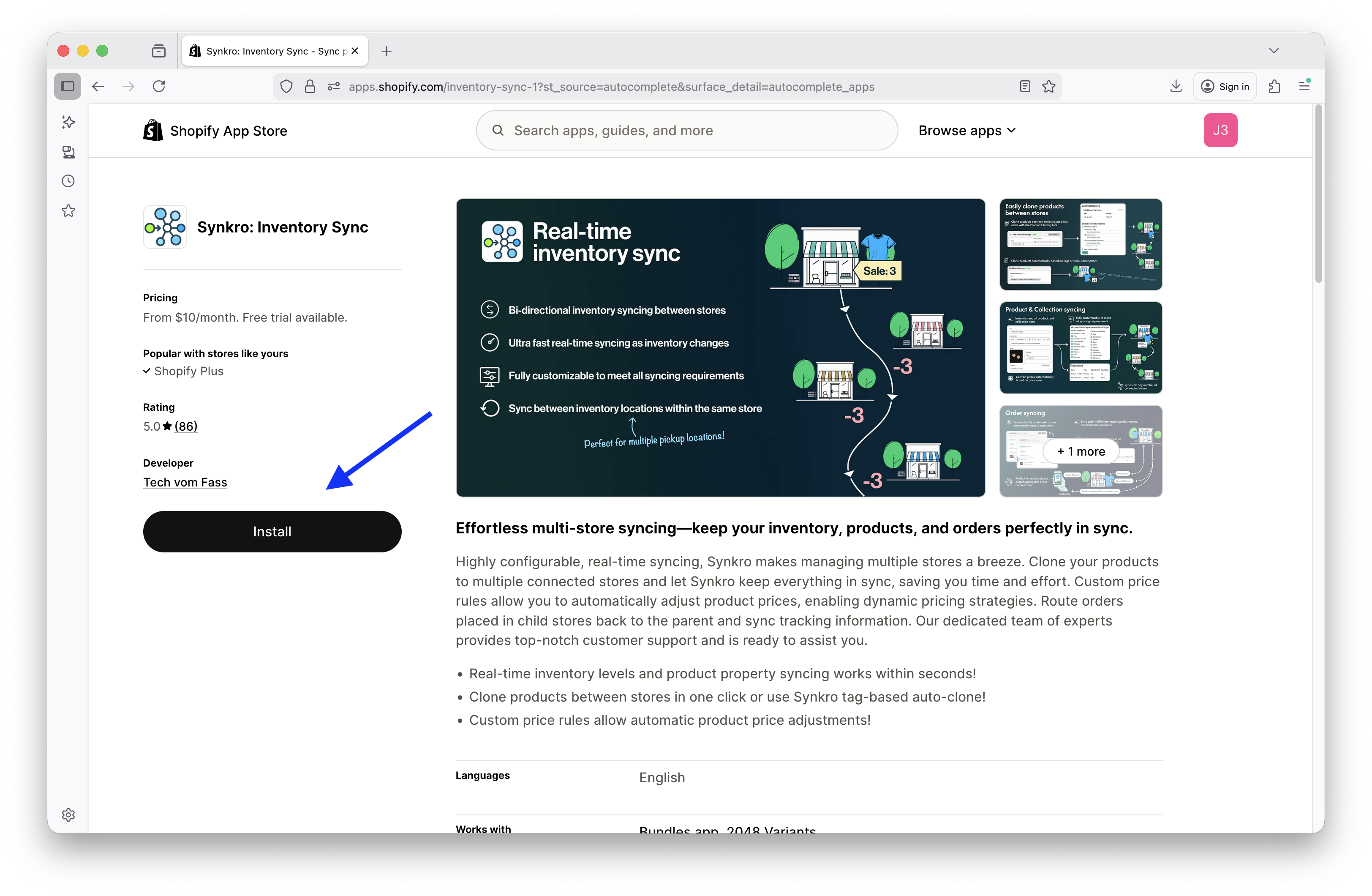 Find Synkro within the Shopify App Store and click
 Install
Step 2: Find your dropship connect code
After completing the Synkro app installation, you will be greeted with a display which asks you how you’d like to continue the setup of the Synkro app. For a dropship supplier store, you should click on the button which says I want to be a dropship source.
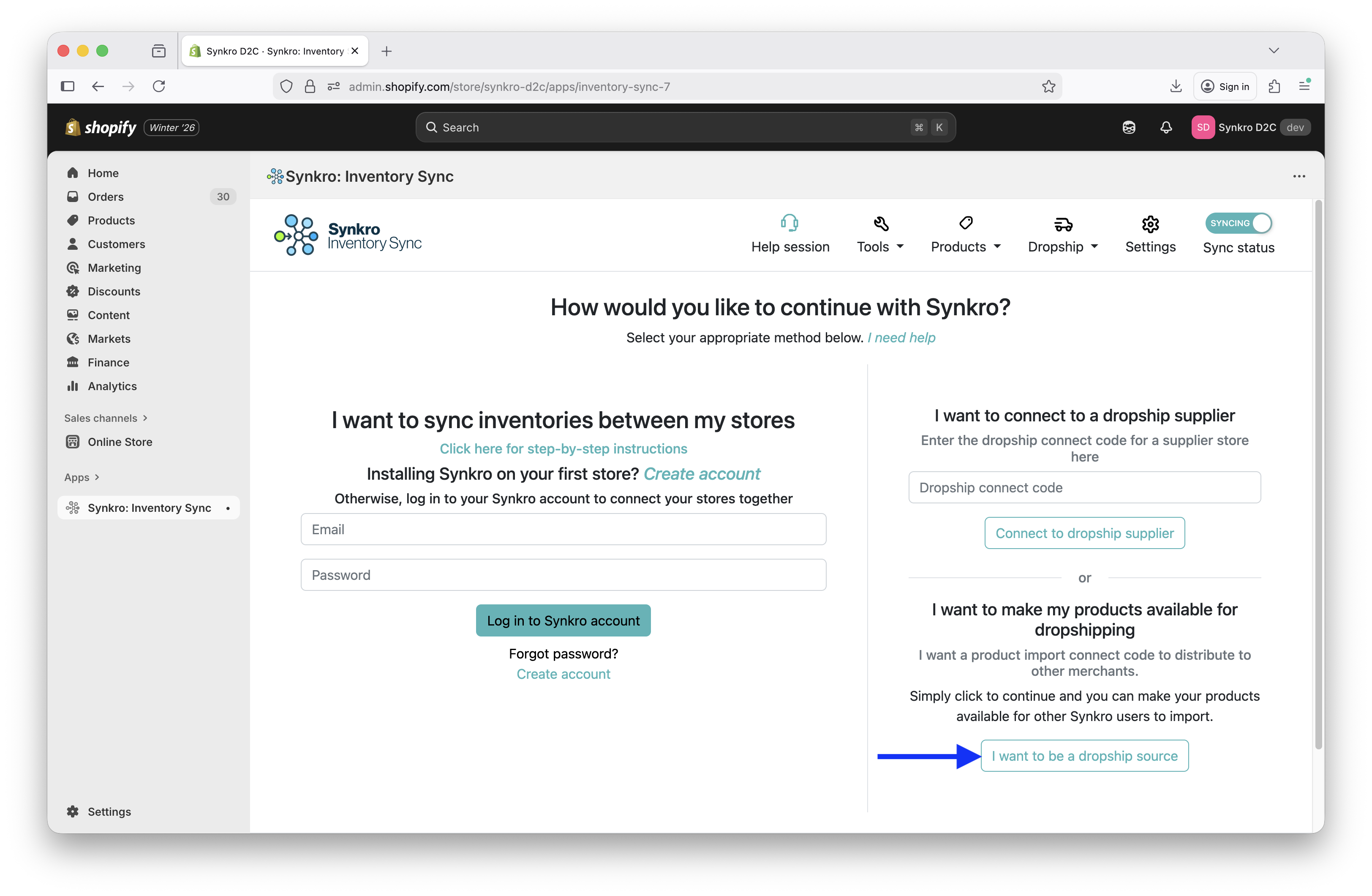 A. Click on the button
 I want to be a dropship source
Next, click on Settings > Dropship connections.
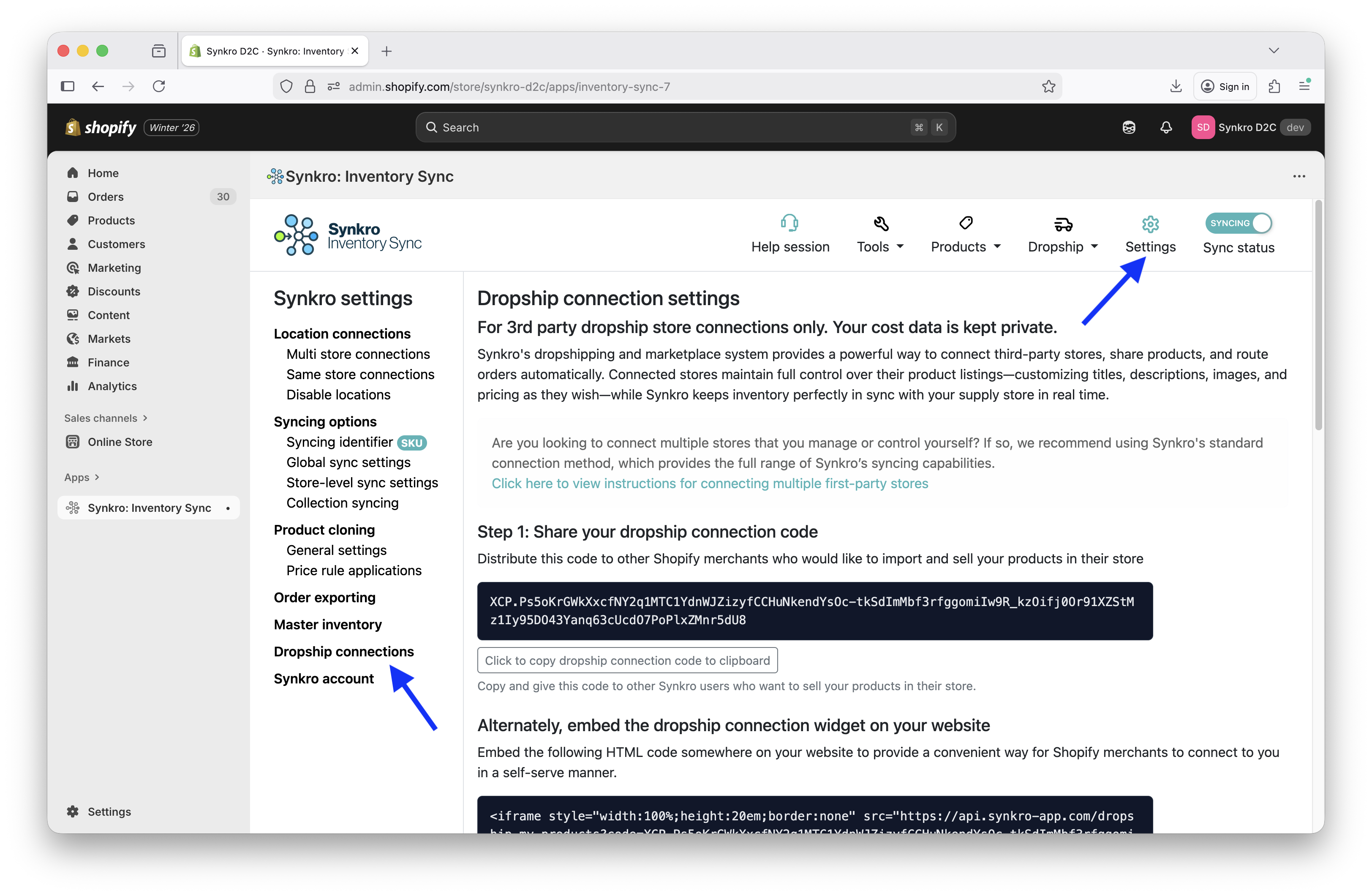 B. Click Settings > Dropship Connections
On the next page, you will see your dropship connection code, as well as further options to customize how the orders are routed from the dropship seller store to your supplier store whenever an order is placed for your products in the dropship seller store.
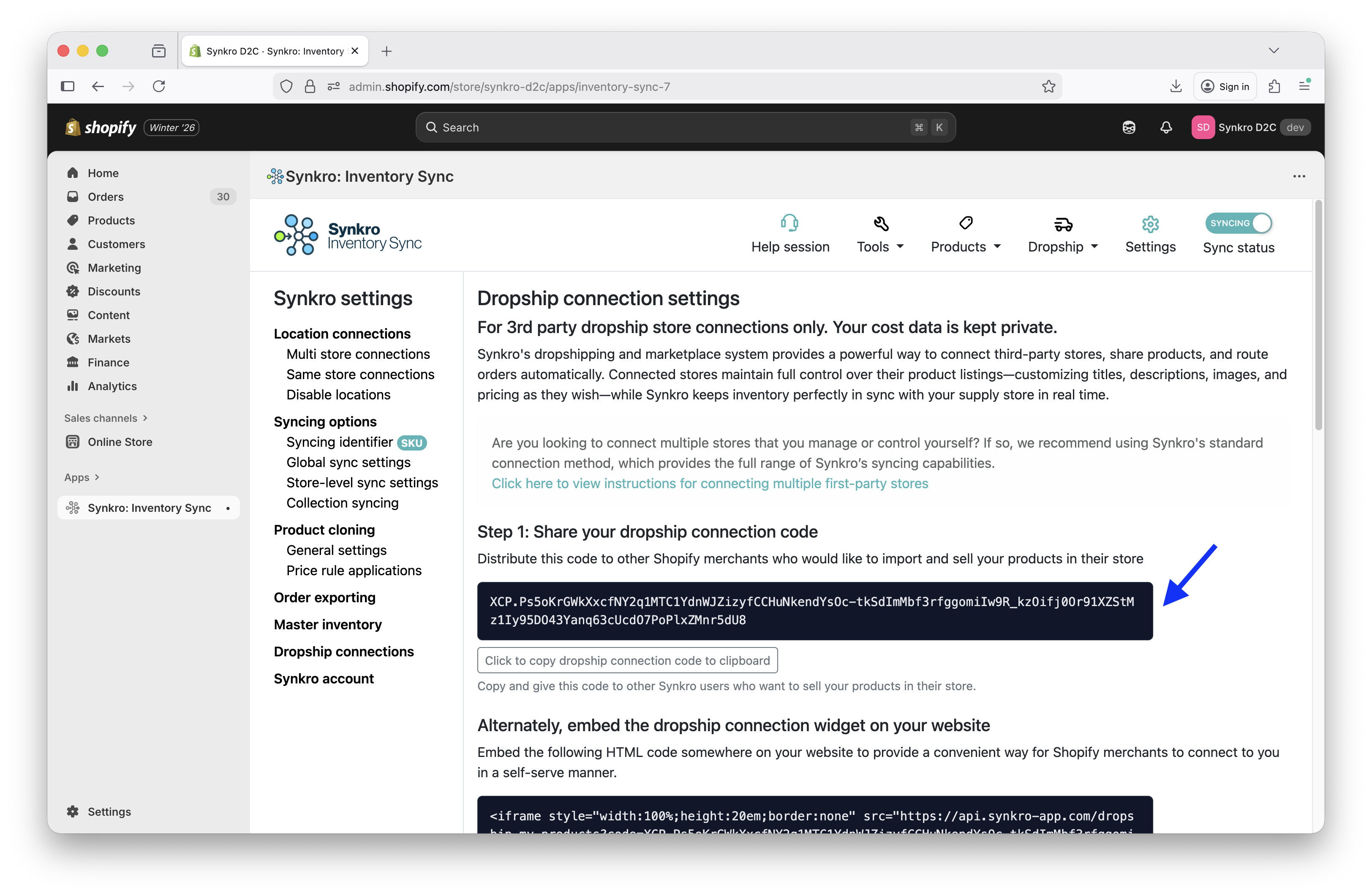 C. Copy your
 Product import connect code and distribute it to the marketplace stores
Copy the dropship connection code which appears in your Dropship connection settings page and distribute this code to any other Shopify store via email. Those stores can follow the Dropship seller store setup instructions and enter this code during installation to quickly begin importing and selling your products.
Step 3: Configure order routing
Synkro can automatically route orders from the dropship seller stores into your supplier store whenever one of your products is sold. You can create default settings to configured how you would like the orders to be routed into your dropship supplier store when a new dropship store connects to you.
Enable order routing
On the same page within the Synkro app where you can retrieve your Dropship connection code, you can also configure your default order routing settings which will be applied to new stores which connect with you. Be sure to configure this before a store has connected with you, because these settings are applied to a dropshipper at the time when they connect to you. If you need to update the order routing settings of a store which is already connected, you can do this within the Synkro Order routing settings.
First, click on the checkbox beside the text which says Export orders for imported products in connected stores back to your store?
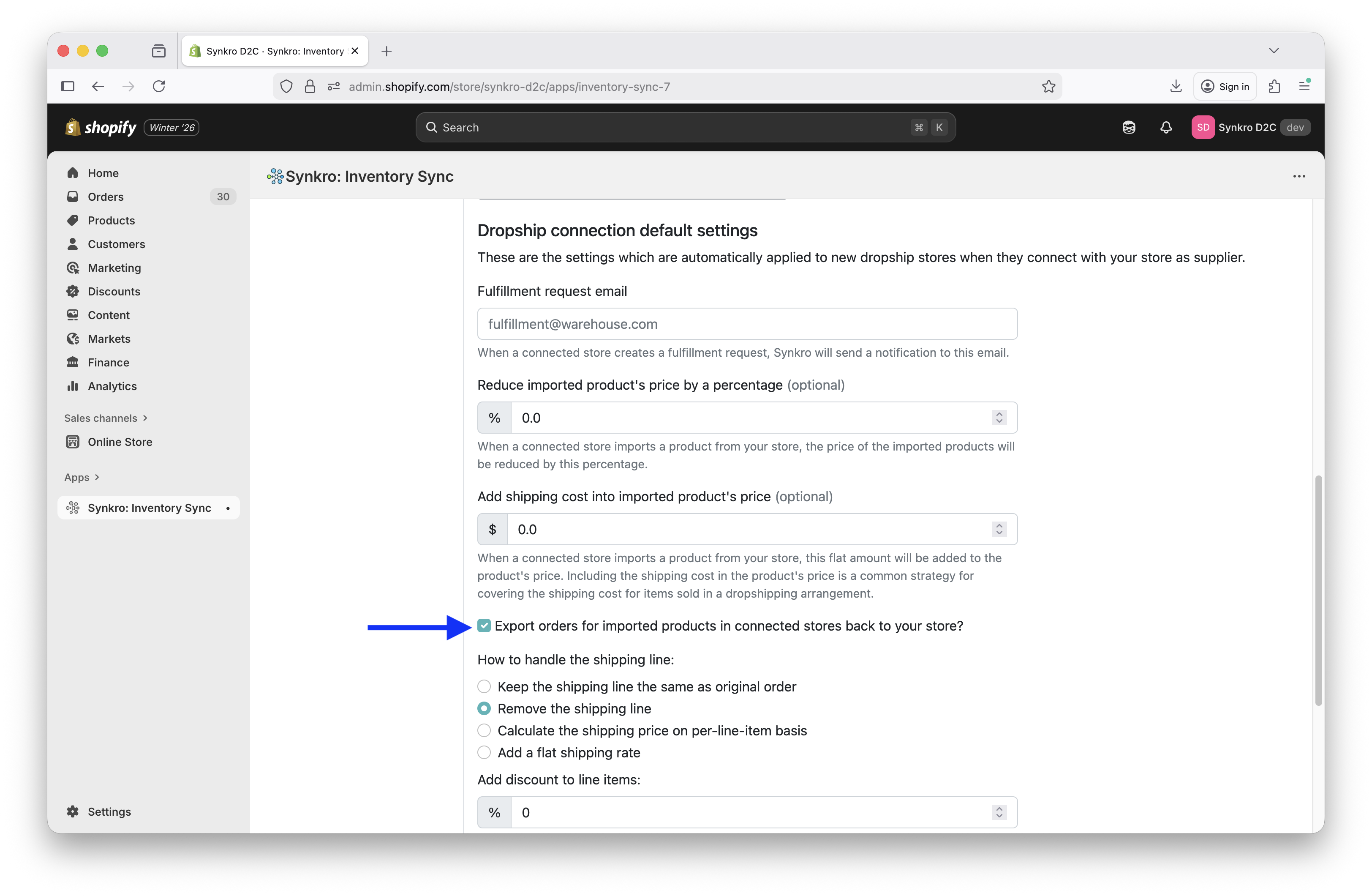 Click checkbox beside
 Export orders for imported product in connected stores back to your store?
After clicking on the checkbox, you will notice many more options immediately appear below which instruct Synkro on how it should route the order back into your supplier store. These options are explained in the next section.
Exported order shipping settings
When Synkro routes an order into your supplier store, there are a few ways in which the shipping costs can be calculated:
Keep the shipping line the same as original order
Create the order in your store with the exact same shipping cost and shipping method title as was used in the original order from the supplier’s store. If you choose this option, be sure to communicate with the dropship store to ensure they are collecting the appropriate shipping costs when processing the order.
Remove the shipping line
Create the order in your store with no shipping line. This implies that you are providing free shipping, or the cost of shipping is included in the price of the goods, or you have some other arrangement with the supplier to settle shipping costs for the orders which you fulfill.
Calculate the shipping price on per-line-item basis
Create the order in your store with a calculated shipping cost based on the number of line items in the order. Selecting this option will bring up an additional input field for the Per line-item flat shipping charge. The amount you enter here is multiplied by the number of line items in the order to determine the shipping charge.
Add a flat shipping rate
Create the order in your store with a flat shipping rate. Selecting this option will bring up an additional input field for the Flat rate shipping charge amount. The amount you enter here will be used as the flat-rate shipping charge.
Add discount to exported orders
When Synkro places an order in your store on behalf of the dropship seller store, it will not apply any discount to that order by default. Sometimes, a supplier store will want to apply an automatic percentage discount to the orders which Synkro places in their store to provide a commission which the dropshipper seller store receives for the order. Agree on a percentage commission with the dropshipper and enter it in the Add discount to line items field within your order export settings.
Charging tax
Synkro can request that your Shopify store apply the tax to the order based on your Shopify store settings. This value is not calculated by Synkro, but by your Shopify store, based on your store’s settings. By checking the box beside Charge tax on exported orders, Synkro will request that your store calculate the appropriate tax for this order being placed in your store on behalf of the marketplace. If you don’t want tax to be added to the order, simply leave this box unchecked.
Marking orders as paid
By default, Synkro will place the dropship store order in your store with the payment status as pending. If you would prefer that these orders are automatically marked as paid when they are placed in your store, you can check the box beside the text Mark exported orders as paid. Then, the orders which Synkro places in your store will have their payment status set as Paid.
Sending an invoice to the dropship seller store
If you’ve opted for Synkro to place orders in your store with a payment status of pending, then you will also need to settle the payment for the order before you fulfill. By clicking the checkbox beside the text Automatically send invoice for exported order, Synkro will automatically send an invoice to the dropship seller store owner on your supplier store’s behalf when the order is routed. This leverages your Shopify store’s native invoicing system, meaning that the dropship store owner can pay the invoice for your Shopify order directly through your store. When the invoice is paid, the payment status of the routed order in your store will automatically switch from pending to paid.
If you would like to settle payment for your dropship orders manually or through a 3rd party system, you should leave the Automatically send invoice for exported order box un-checked.
Syncing order fulfillment
When you fulfill the order which Synkro creates in your store on behalf of the dropship seller store, Synkro can automatically sync this fulfillment and tracking information back to the original order. To enable this feature, click the checkbox beside the text Sync fulfillment details back to source order.
Other order routing settings
Besides the order routing settings mentioned here, you can customize the order routing behaviour in a number of other ways, including:
- Order discounts.
- Line item pricing.
- Currency.
- Order numbers.
- Automatically adding tags to exported orders.
- VAT tax.
If you find that the default order routing customizations are not sufficient for your needs, or if you would like to customize the routing behaviour for any of these properties, please send an email to support@synkro-app.com with a description of exactly how you’d like orders to be routed from a marketplace seller store into your supplier store.
Step 4: Enable importing for products in your store
By default, Synkro does not assume that you want any products in your store to be made available for your connected dropship seller stores to import. To allow a dropship seller store to import your products, you will have to enable importing for products in your store. There are two ways which you can do this:
Enable importing in bulk from the Shopify Admin
From your Shopify Admin Product List page, select the products which you’d like to make available for your connected dropship seller stores to import, then click ... (more actions), then scroll down in the box which appears and click Perform bulk action on selected products.
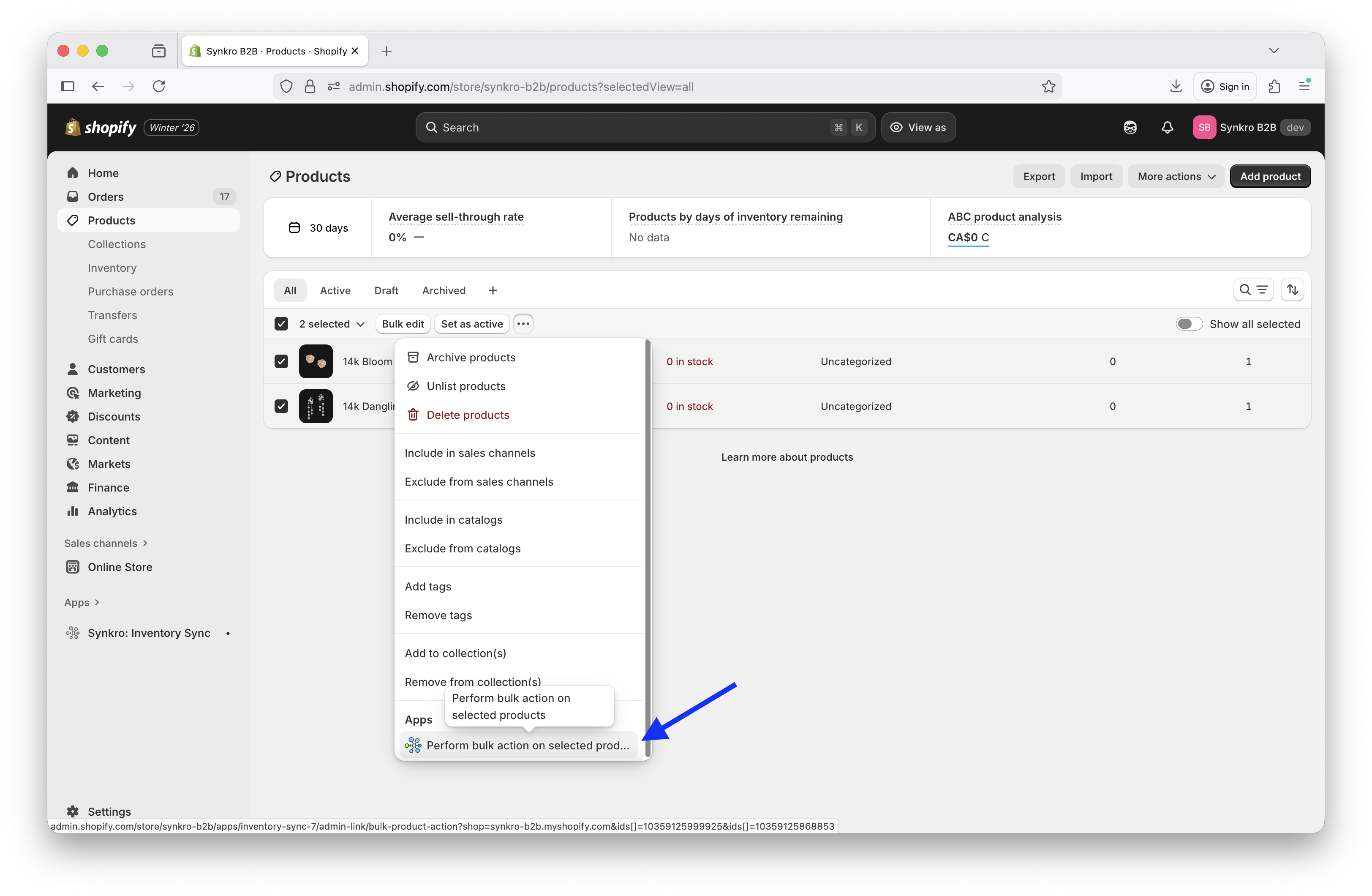 A. Select products, then click
 ... (more actions) and Perform bulk action on selected products
Next, you will be greeted by a page where you can enable or disable product importing on the selected products.
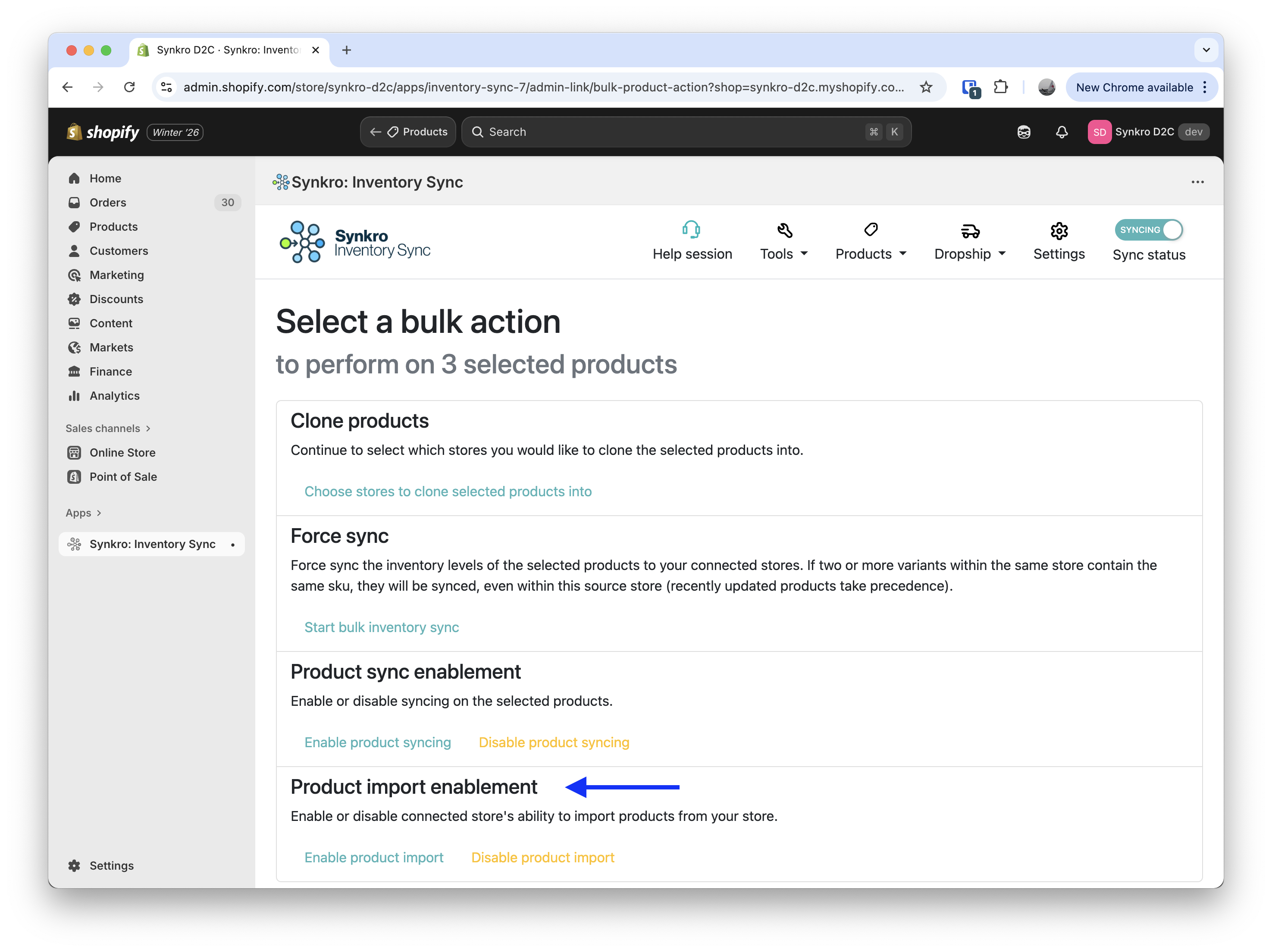 B. Click
 Enable product import for selected products
Once you have completed this step, your connected dropship seller stores will be able to search for these products and import them into their store.
Enable dropshipping within the Synkro app
From within the Synkro app, you can navigate to the My products section by clicking on the Synkro logo. Then, click the X button beside any product which you’d like to make available for your connected dropship stores to import. You can also select multiple products and enable importing in bulk.
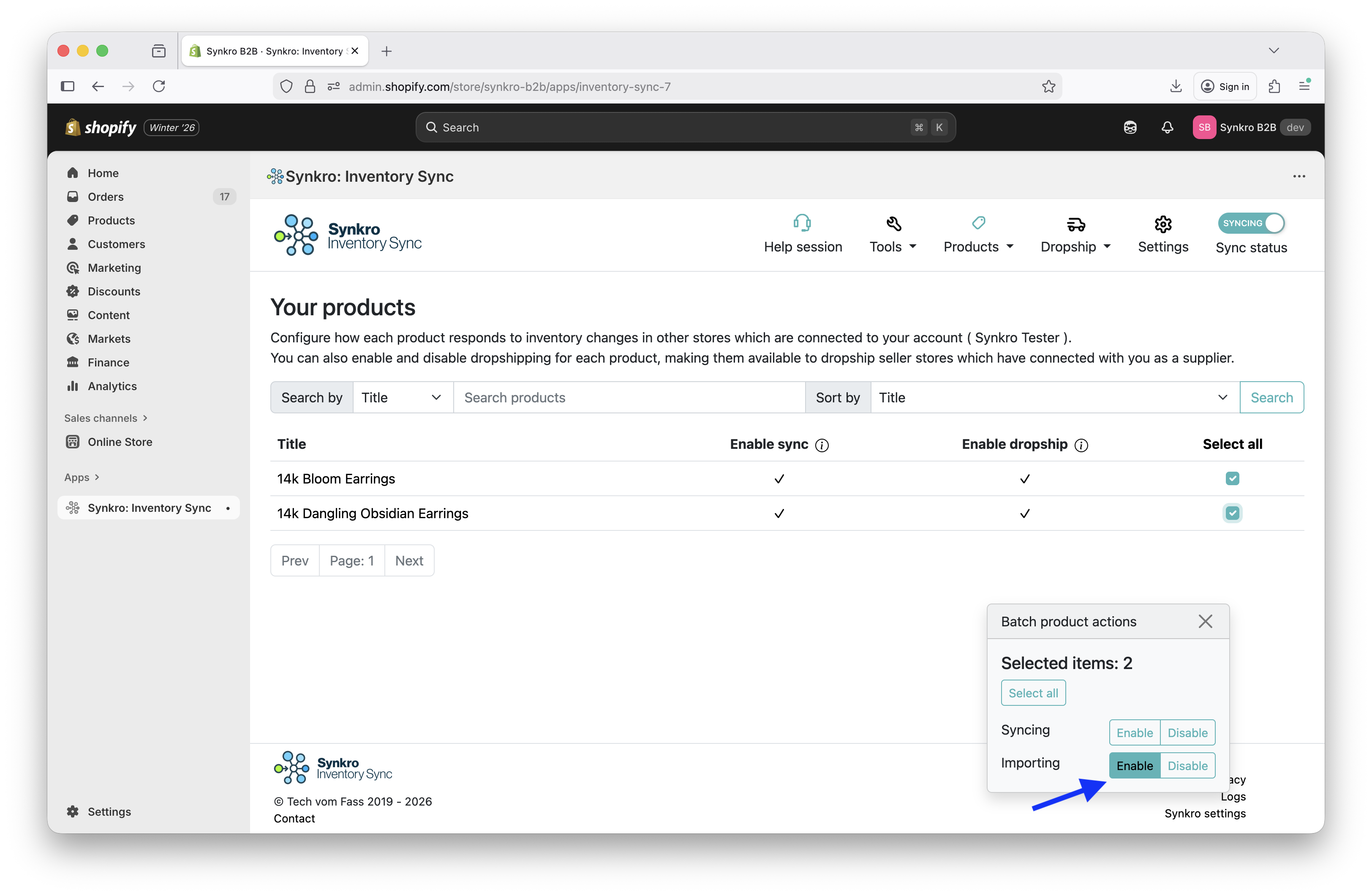 Select one or more products, then click the
 Enable button