

Same Store Inventory Syncing
Synkro syncs inventory levels between products within the same store which share the same SKU or Barcode.
Last updated May 21, 2026
Overview
Synkro syncs inventory levels between products within your store which share the same SKU or Barcode. Follow these simple instructions to start syncing inventory within a few minutes.
Step 1: Install Synkro in your Shopify store
To begin the installation process, install Synkro in your Shopify store. You can search for the Synkro app from within your Shopify Admin panel, or click this link to view Synkro within the Shopify App store.
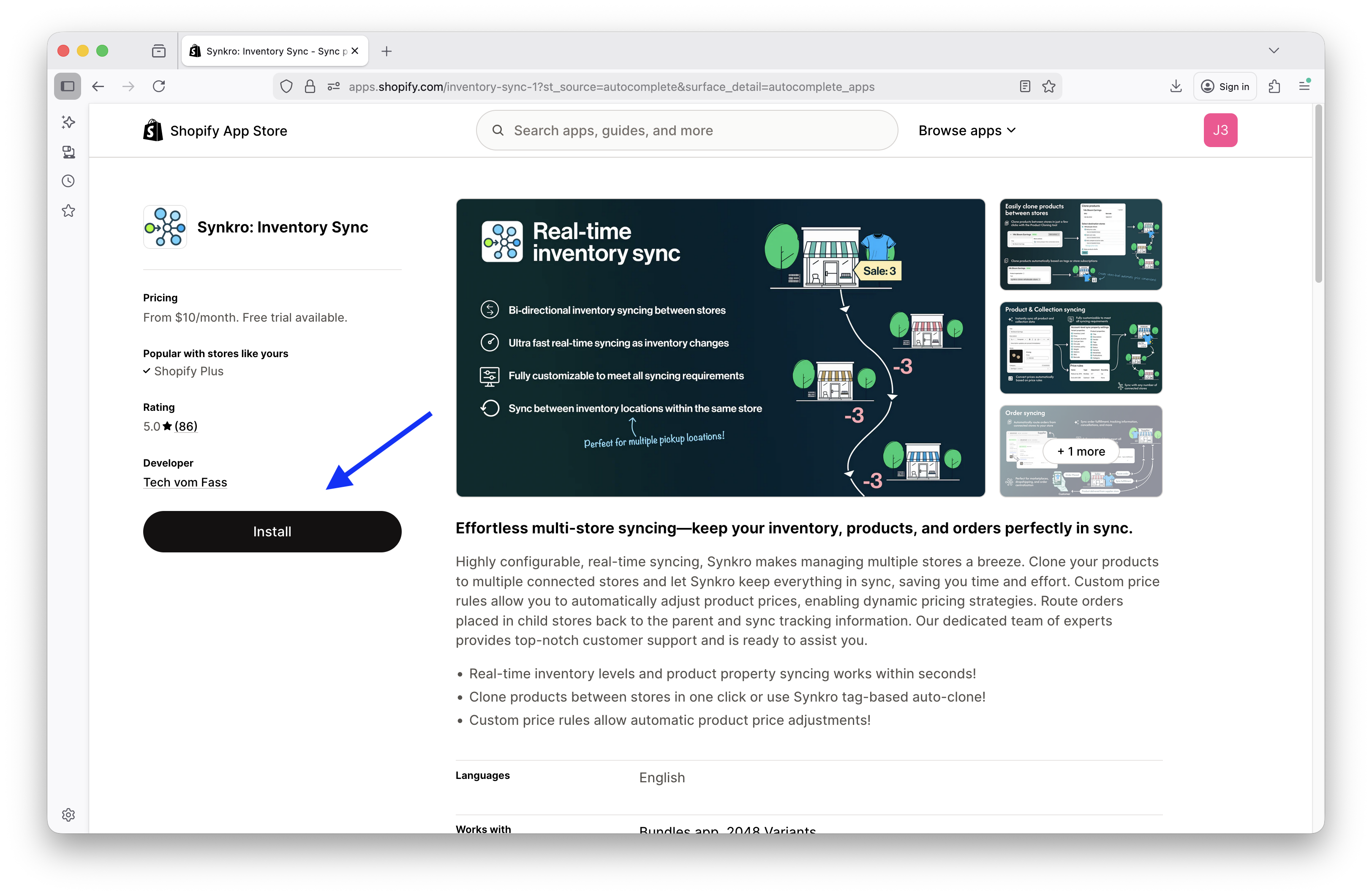 Find Synkro within the Shopify App Store and click
 Install
Step 2: Create a Synkro account
Now that the Synkro app is installed on your store, your next step is to create a Synkro Account. This account is used to connect all of your Shopify stores together for syncing purposes and allow you to manage your Synkro settings.
At this point in the installation process, you will be presented with an option to continue with Synkro as a Multi-store merchant, or as a 3rd party store connecting to another Synkro Dropship source. Under the ‘I want to sync inventories between my stores’ section, click ‘Create account.’
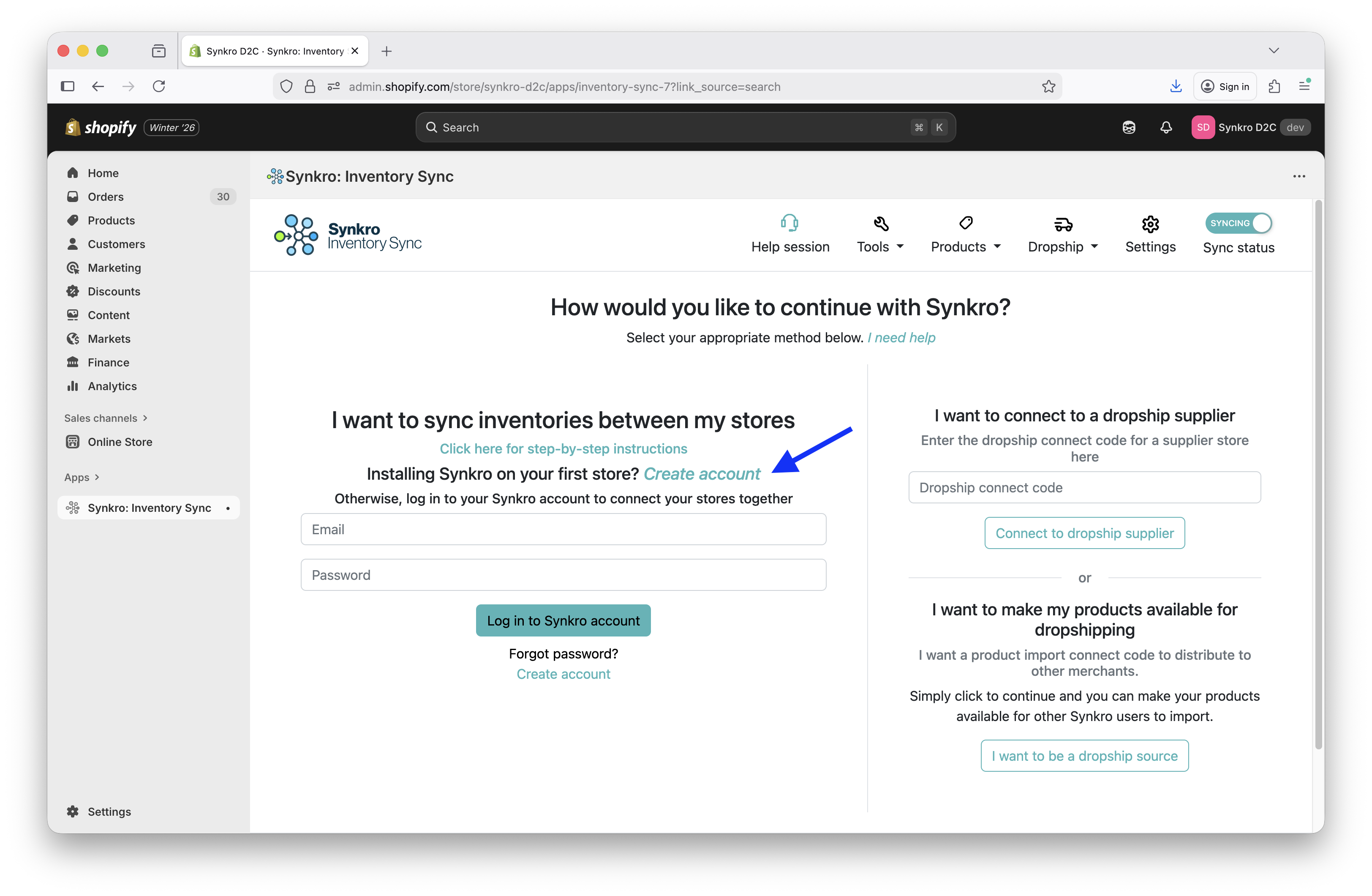 Click the
 Create account button under the I want to sync inventories between my stores section
Provide a Name, Email, and Password for your new Synkro account and then click Submit.
Select SKU or Barcode for inventory syncing
For some merchants, the SKU value of a product/variant is not suitable for inventory syncing purposes. In this case, you can easily switch to Barcode syncing mode by navigating to the Syncing identifier tab within your Synkro settings. Then, select Barcode and click Save underneath. This setting applies to all of your stores connected under your Synkro account.
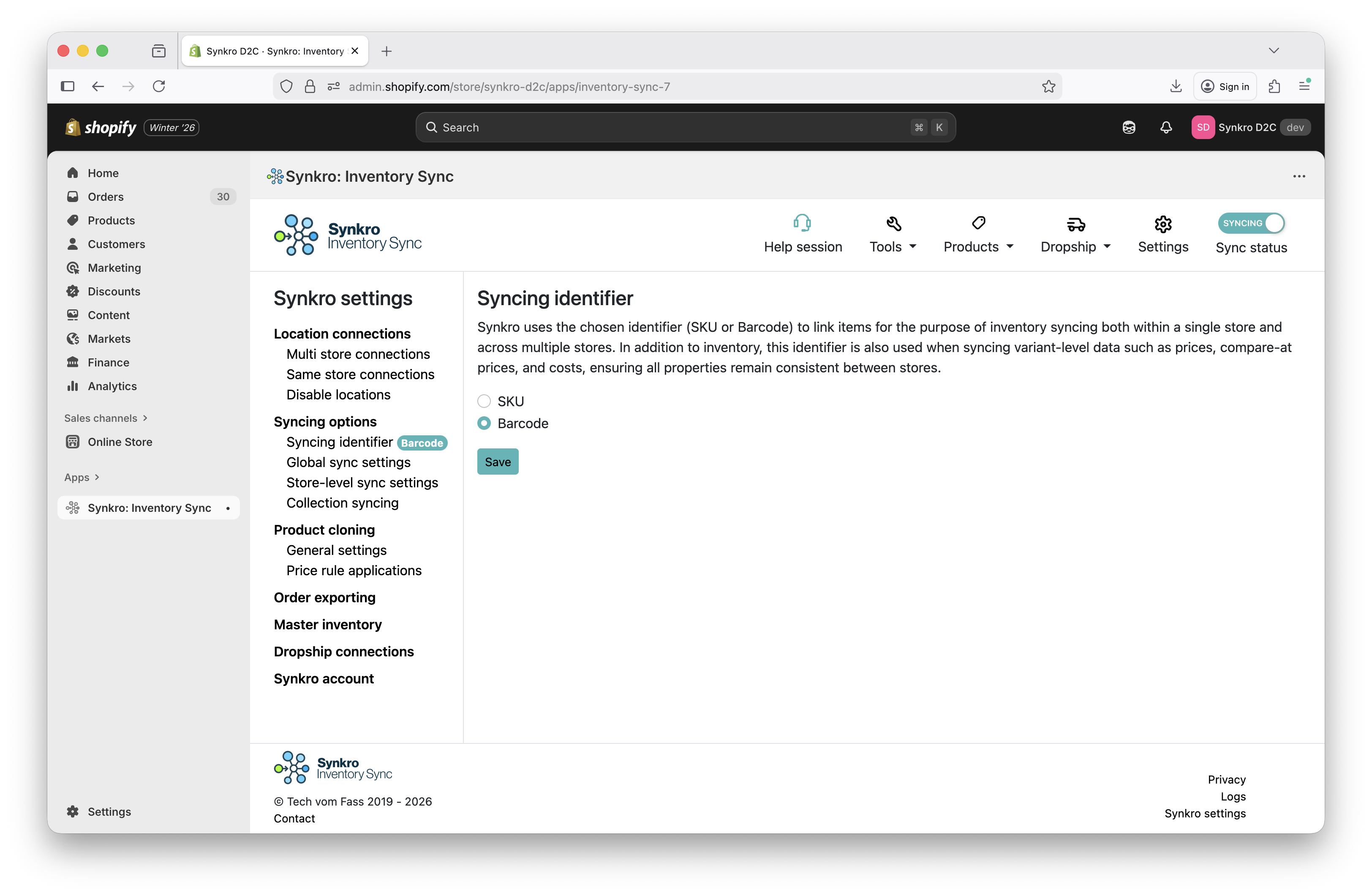 Switch to Barcode syncing mode
Installation complete
Congratulations! You have finished installing Synkro for syncing inventory between products within the same store 🚀
At this point, the next time an inventory change occurs in your store, Synkro will sync the inventory level of the changed product/variant to other products/variants within your store which share the same SKU (or Barcode, if in Barcode-based syncing mode). You can test this out by changing the inventory level of a product in your store, then checking other variants in your store which share the same SKU. After a few seconds, you will see their inventory levels set to match the new inventory level.
Selling multiple distinct same-SKU products in one order? This default syncing works perfectly for everyday changes, but it can’t account for two or more separate products with the same SKU being sold within a single order. If that applies to your store, see the Master Inventory System.
Next steps
Check for duplicate SKU/Barcode values in your store
Synkro syncs inventory levels between products/variants which share the same SKU (or optionally, Barcode) value. This includes products/variants within the same store which share the same SKU. Sometimes, merchants aren’t aware that they have multiple occurrences of the same SKU within the same store and are surprised to find that inventory is synced between these items.
To review the duplicate SKUs and Barcodes within your store, see our Detect duplicate SKUs & Barcodes tool.