


User Guide: Synkro Order Routing System
1. Overview
What is Synkro’s Order Routing System?
Synkro’s Order Routing System is a highly configurable engine that automates order transfer between Shopify stores. Designed to support any use case which involves the movement of order from one store to another. Here are two common examples:
- Drop Shipping & Supplier Fulfillment: Automatically routes orders from a "Source Store" to a supplier's "Destination Store." It eliminates manual entry and instantly handles B2B financial adjustments, such as trade discounts or tax removal.
- Centralized Order Consolidation: Merges orders from multiple "child" stores into a single "parent" store. This allows your admin team to fulfill orders from one central dashboard rather than monitoring multiple storefronts.
2. Quick Start Guides
Access the Order Routing settings via the main navigation menu: Synkro > Settings > Order Routing.
How to Create an Order Routing Setting
- Navigate to the Settings > Order routing
- Click Create new order routing setting
- Select your Source Store (where the order is placed). The Destination Store (where the order is sent to) will automatically be set to the current Shopify store you are logged in to.
- Click Continue to configuration and set the routing logic (see the Reference section below)
- Adjust options as needed.
- Click Save at the bottom of the page to apply changes immediately.
🚀 Congratulations! The next time an order is placed in the source store, it will be routed to the destination store according to your configuration.
How to Update an Order Routing Setting
- Navigate to Settings > Order routing.
- Locate the specific routing connection you wish to modify.
- Click Edit to open the configuration panel.
- Adjust options as needed.
- Click Save at the bottom of the page to apply changes immediately.
How to Delete an Order Routing Setting
- Navigate to Settings > Order routing.
- Under Your configured order routing settings locate the setting you wish to remove.
- Click Delete.
- Note: Deleting a setting stops future orders from routing but does not affect orders already processed.
3. Reference: Deep Dive into Order Routing Settings
This section explains every configuration option available in the Order Routing Settings.
Store Configuration
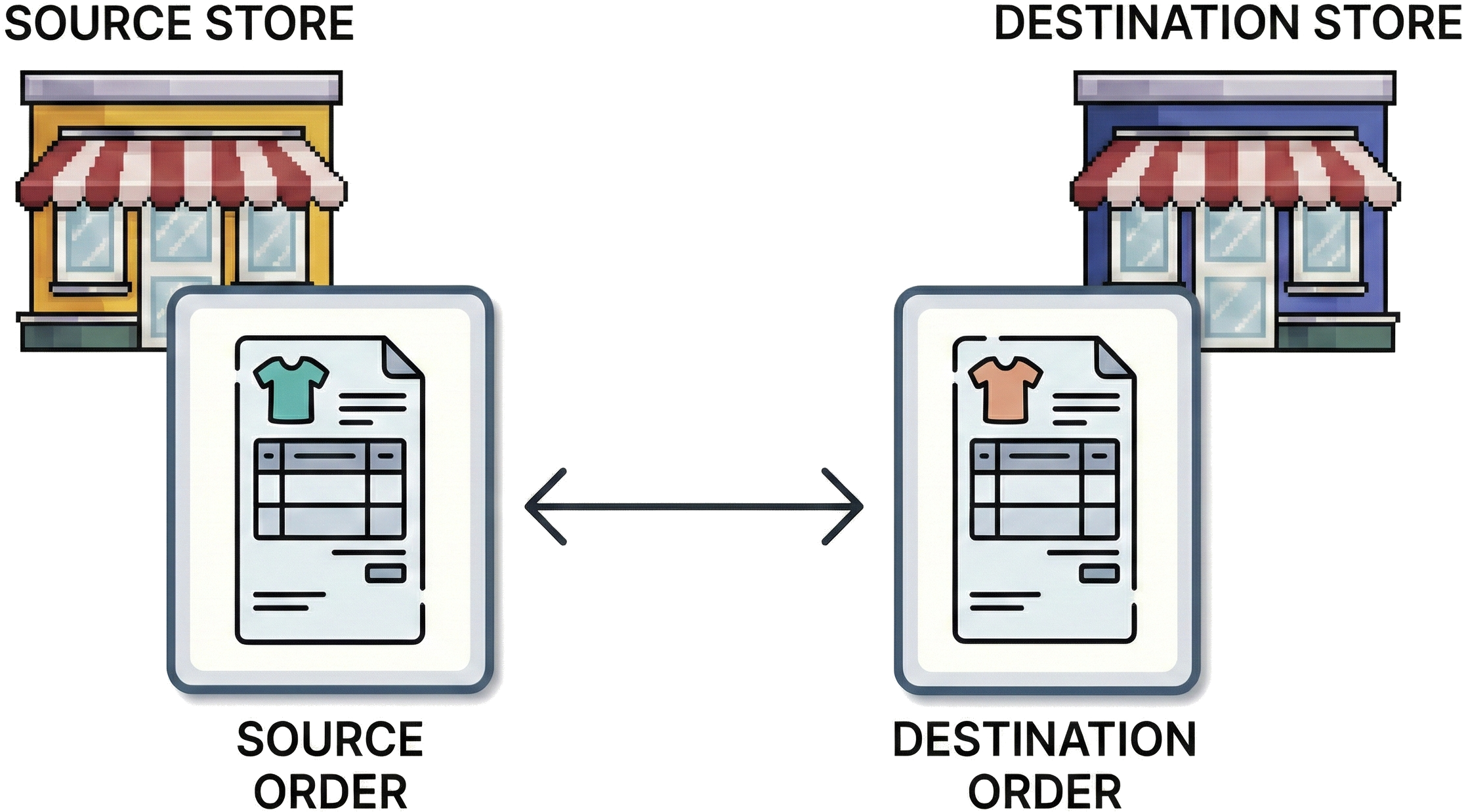
- Source store: The store that receives the initial customer order (e.g., the dropshipper).
- Source order: An order created in the source store.
- Destination store: The store that the order will be sent to (e.g., the supplier).
- Destination order: An order copied to the destination store from the source store.
- Sync: Means copying a piece of data. If I sync an email from a source order to a destination order it means that I'm copying the data as it appears in the source order and pasting it in the destination order.
Address & Customer Details
- Billing address:
- Replace with source store address: The destination order will use the billing address of the source store.
- Usage “Replace with source store address” is typically used in dropshipping workflows where Synkro routes orders on behalf of the dropshipper. In this mode, the source store’s address is applied as the billing address on the order sent to the supplier store.
- Same as source order: The destination order will use the billing address specified in the source order.
- The billing address of the source store is usually the dropshipper's billing address whereas the billing address specified in the source order is usually the customer's billing address.
- Replace with source store address: The destination order will use the billing address of the source store.
- Shipping address:
- Replace with source store address: The destination order will use the shipping address specified in the source order
- Same as source order: The destination order will use the shipping address associated with the source store.
- Sync shipping address:
- Include source order shipping address and sync future changes: The destination order's shipping address will update when the source order's shipping address changes.
- Include source order shipping address on initial routing only: The destination order will use the shipping address specified in the source order. Subsequent changes to the source order shipping address will not be synced to the destination order.
- Requires shipping:
- Do not specify (allow destination store to assign value): The destination order will not specify an requires shipping value. The destination store will automatically assign one.
- Set to False: The destination order will use false as the requires shipping value.
- Sync email:
- Include source order email and sync future changes: The destination order's email will update when the source order's email changes.
- Include source order email on initial routing only: The destination order will use the email specified in the source order. Subsequent changes to the source order email will not be synced to the destination order.
- Sync customer:
- Include source order customer and sync future changes: The destination order's customer will update when the source order's customer changes.
- Include source order customer on initial routing only: The destination order will use the customer specified in the source order. Subsequent changes to the source order customer will not be synced to the destination order.
Financial Settings (Costs & Discounts)
- Shipping line:
- Configures how the shipping line should be calculated.
- Same as source order: The destination order will use the shipping line specified in the source order. Effectively copies the exact shipping cost paid by the customer.
- Lowest calculated rate based on destination store shipping carriers: Checks the destination store's shipping carriers and selects the cheapest option automatically. This is useful for maximizing margin.
- Flat rate / Remove shipping: Useful if you have a negotiated free shipping or flat fee arrangement with your supplier.
- Other options:
- Calculated per line item
- 5% of subtotal
- 5% of subtotal + 1
- Apply automatic discount to destination order:
- Enter a percentage (e.g.,
30for 30%). This creates your profit margin. If you sell a product for $100 and route it to your supplier with a 30% discount, you pay them $70, keeping $30 as profit.
- Enter a percentage (e.g.,
Tax & Currency
- Currency:
- Use source store currency: The destination order will use the currency specified in the source order.
- Do not specify (allow destination store to assign currency): The destination order will not specify an currency. The destination store will automatically assign one.
- Override tax percentage:
- Configure to set your own tax percentage on the order
- 0%: Useful setting for cross-border B2B trade as corporations often don't pay sales tax to each other. This overrides Shopify's automatic tax calculation to prevent overcharging.
- Tax label: Optional label for the tax line (e.g., "VAT") if an override is applied.
- Charge tax: Tells Shopify whether to attempt to calculate tax on the destination order in the destination store. Don't enable if Override tax percentage is used.
- Taxes included:
- Specifies how the system handles tax calculation on the new order.
- Set to false: The destination order will use false as the taxes included value.
- Copy from source order: The destination order will use the taxes included value specified in the source order.
Order Management & Logic
- Order name:
- Configures which store order name to use
- Do not specify: The destination order will not specify an order name. The destination store will automatically assign one.
- Use source order name: The destination order will use the order name specified in the source order. This keeps the reference number consistent (e.g., #Order-A) across both stores for easier reconciliation.
- Mark as paid:
- Check this if you have credit terms with your supplier. It creates the order in the destination store with a status of "Paid," so the supplier can fulfill it immediately without waiting for payment processing.
- Sync payment status from destination order to source order:
- Checked: The source order's payment status will update when the destination order's payment status changes.
- Sync payment status from source order to destination order:
- Checked: The destination order's payment status will update when the source order's payment status changes.
- Sync cancellation:
- Critical for preventing shipment of cancelled orders.
- Do not sync cancellation of source order: Changes to the source order cancellation will not be synced to the destination order.
- Sync cancellation of source order to routed order: The destination order's cancellation will update when the source order's cancellation changes.
- Send receipt: Configures whether a standard Shopify order receipt is sent to the customer from the destination store.
- Send invoice to source store: A B2B setting that triggers an invoice to be sent back to the source store for their records or payment.
Data & Metadata
- Include line item properties:
- Checked: The destination order will use the line item properties specified in the source order. For example, custom notes like "Happy Birthday Mom" on a gift basket will be carried over so the destination store receives the message.
- Include buyer accepts marketing:
- Checked The destination order will use the marketing preference specified in the source order.
- Add tags to destination order:
- Specify tags to be added to the destination order. For instance, "Dropship" or "Synkro" tags can be used for sorting/filtering.
- Add tags to source order:
- Specify tags to be added to the source order. Tags can indicate that the source order has been successfully sent.
- Sync tags:
- Do not include tags from source order: The destination order will not use the source order tags.
- Include source order tags and sync future changes: The destination order's tags will update when the source order's tags changes.
- Include source order tags on initial routing only: The destination order will use the tags specified in the source order. Subsequent changes to the source order tags will not be synced to the destination order.
- Sync notes:
- Include source order notes and sync future changes: The destination order's notes will update when the source order's notes changes.
- Include source order notes on initial routing only: The destination order will use the notes specified in the source order. Subsequent changes to the source order notes will not be synced to the destination order.
Fulfillment & Inventory
- Routing trigger:
- Route order when triggered manually by tagging source order: An order will be copied from the source store to the destination store only when the tag
synkro-clone-destination-store(as indestination-store.myshopify.com) is included in the source order. - Route order when it is created in source store: An order will be copied from the source store to the destination store as soon as it's created.
- Route order when triggered manually by tagging source order: An order will be copied from the source store to the destination store only when the tag
- Inventory behaviour:
- How should inventory in the destination store be updated when an order is created in the source store.
- Do not claim inventory: Inventory in the destination store always remains the same.
- Ignore the product's inventory policy and claim inventory is often used to ensure that the destination order is created even if the destination store shows low stock, assuming the supplier has back-stock.
- Follow the product's inventory policy and claim inventory, if possible
- Destination store fulfillment location:
- Specifies which location in the destination store should fulfill the destination order (once created from the source order). If left unspecified the destination store automatically chooses the location.
- Only route orders from source store fulfillment location:
- Specifies which source store location should source orders come from. If left unspecified all fulfillment locations in the source store qualify for order routing.
- Fulfillment location mappings:
- Links specific locations in the source store to specific locations in the destination's store. If configured, synkro will ignore any orders from locations in the source store which are not specified as a "Source store fulfillment location".
- This ensures that if you have multiple destination stores, the order routes to the correct one based on the location where the inventory is stocked.
- Sync fulfillments from destination order to source order:
- Checked: The source order's fulfillments will update when the destination order's fulfillments changes.
- Sync fulfillments from source order to destination order:
- Checked: The destination order's payment status will update when the source order's payment status changes.
- Fulfillment sync notify customer:
- This setting determines if the customer is automatically notified (usually via email) the moment the fulfillment status is copied from either the destination order to the source order or from the source order to the destination order.
Product & Line Item Details
- Line item price:
- Configures how the line item price should be calculated.
- Do not specify (allow destination store to assign line item price). The destination order will not specify an line item price. The destination store will automatically assign one. This option is standard for dropshipping where the supplier controls the wholesale cost.
- Other options
- Convert to destination store default currency
- Use destination store inventory item cost
- Use source order price
- Use source store inventory item cost
- Include line item discounts:
- Checked: The destination order will use the line item discount specified in the source order for all line items.
- Include custom line items:
- Checked: The destination order will use the custom line items specified in the source order. Effectively configures if items manually added to an order (that aren't standard products in the catalog) should be synced to the destination store.
- Sync line item changes:
- Do not sync cancellation of source order: Changes to the source order line items will not be synced to the destination order.
- Sync line item changes made to source order to routed order: The destination order's line items will update when the source order's line items change.
- Destination store variant identifier:
- Configure whether synkro should use the SKU, Barcode, or a specific ID to match the item in the supplier's store.
- Options
- Select parent of the item which was included in the source order
- Select child of the item which was included in the source order
- Select item in destination store which has the same SKU as source order line item


